


NVIDIA has launched its GeForce Game Ready 471.11 WHQL drivers which enable the RTX ray-tracing & DLSS in DOOM Eternal. Not only that but the driver also enables RTX support in a few other titles while offering support for even more G-Sync compatible displays.
NVIDIA GeForce Game Ready 471.11 WHQL Drivers Unleash RTX Support For DOOM Eternal - Time To Slay Demons With Some Raytracing Action!
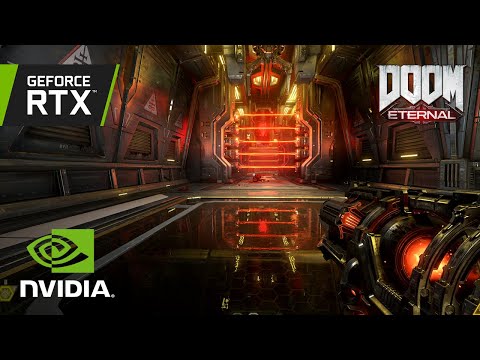
DOOM Eternal is probably one of the bigger titles to support NVIDIA's RTX technology and GeForce Game Ready 471.11 WHQL drivers enable those in-game. DOOM Eternal will be leveraging from the ray-traced reflections and DLSS technology, offering both superior image quality and higher frame rate as you hunt down demons. In addition to DOOM, LEGO Builder's Journey will also feature ray-traced effects along with DLSS while also the driver also adds DLSS for Rust, and F1 2021 too.
You can download the NVIDIA GeForce Game Ready 471.11 WHQL Drivers Here (Windows 10 64-bit)
NVIDIA has also announced brand new G-Sync compatible displays with its GeForce 471.11 WHQL Game Ready drivers. They can be seen in the table below:
| MANUFACTURER | MODEL | HDR | SIZE | LCD Type | Resolution | VRR Range |
| AOC | AG274US4R6B | Yes | 27" | IPS | 3840x2160 (4K) | 48-144Hz |
| AOC | AG254FWG8R4 | Yes | 24.5" | IPS | 1920x1080 (FHD) | 48-144Hz |
| ASUS | VG28UQL1A | No | 28" | IPS | 3840x2160 (4K) | 48-144Hz |
| LG | 32GN650/32GN63T | Yes | 32" | IPS | 2560x1440 (QHD) | 60-144Hz |
NVIDIA DLSS Linux Support For Proton
NVIDIA DLSS support for Vulkan API games is now available on Proton, enabling Linux gamers to use the dedicated AI Tensor Cores of their GeForce RTX GPUs to accelerate frame rates in DOOM Eternal, No Man’s Sky, and Wolfenstein: Youngblood. Support for DLSS-enhanced DirectX titles running via Proton will follow this Fall.

To enable Proton through your GNU/Linux Steam application, and use NVIDIA DLSS in supported titles:
- Download and install our new Linux driver
- Install and Launch Steam
- At the top of the menu bar, select “Steam” and click on “Settings” in the dropdown menu
- To the left of the Settings pop-up window, select “Steam Play” at the bottom of the list
- Check “Enable Steam Play for supported titles” and “Enable Steam Play for all other titles”
- Next to the “Run other Titles with” category, there is a drop-down menu. Choose Proton Experimental
- Load and play a supported DLSS game
NVIDIA Game Ready 471.11 WHQL Fixed Issues in this Release
- [World of Warcraft: Shadowlands]: Random flicker may occur in certain locations in the game
[3206341] - [SLI][GeForce GTX 980M]: The system locks with a black screen upon booting into Windows.
no repro with 457.51. [3266090] - [Surround][GeForce RTX 3090]: With Surround active, setting Bezel Correction disables
Surround. [3286449] - [Crossfire][GeForce Experience][FreeStyle]: Freestyle might not work on Crossfire after the
game is updated. [200736765] - [HDR]: Some specific HDMI displays might show some flickering in HDR mode. [200729987]
- [Steam VR game]: Stuttering and lagging occur upon launching a game while any GPU
hardware monitoring tool is running in the background. [3152190] - [NVIDIA Ampere GPU]: Colors may appear incorrect in games if sharpen Freestyle filter is
used with HDR enabled. [200658208] - The display may flicker or lose signal when launching a game on an adaptive-sync VRR monitor in multi-monitor configuration when sharing the same display mode [3314055]
- DisplayPort monitor may not wake from sleep when connected in extended mode with an
HDMI 2.1 display that is powered off. [3281998]
NVIDIA Game Ready 471.11 WHQL Windows 10 Issues
- [Batman Arkham Knight]: The game crashes when turbulence smoke is enabled. [3202250]
- [YouTube]: Video playback stutters while scrolling down the YouTube page. [3129705]
- DPC latency is higher when color mode is set to 8-bit color compared to 10-bit color.
[3316424]


About the author: A Software Engineer by training and a PC enthusiast by passion, Hassan Mujtaba serves as Wccftech's Senior Editor for hardware section. With years of experience in the industry, he specializes in deep-dive technical analysis of next-generation CPU and GPU architectures, motherboards, and cooling solutions. His work involves not only breaking news on upcoming technologies but also extensive hands-on reviews and benchmarking.
Follow Wccftech on Google to get more of our news coverage in your feeds.


