


Do you have an old phone lying around gathering dust? Now you just might have an actual use for it. The Google Assistant's Ambient Mode can now turn your phone into a smart display. We first saw it in action in September this year. Here's a short video of it in action.
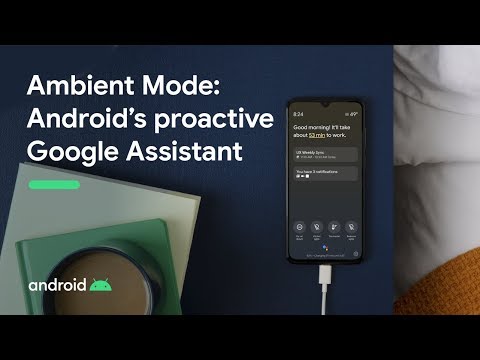
Initially, Ambient Mode was designed for smart displays only. Now, it can be used on a wide range of smartphones and tablets. All you need is a Google Assistant-ready device running Android 8.0 Oreo or higher.
Ambient Mode turns your phone into one giant Google Assistant
Ambient Mode is essentially an extension of the smart display concept implemented on a smartphone. For example, Ambient Mode requires your phone to be plugged in at all times to work, much like most smart displays that come without batteries. It is not meant to be a smartphone replacement. Think of it more like an in-house remote for when you can't reach your phone.
With the Google Assistant, you can set alarms, find out about your day, control other connected smart appliances and the likes. Like a smart display, your phone can also double up as a dynamic photo album and show images pulled off your Google Photos.
The problem right now is that nobody knows exactly which devices are supported. Scattered reports indicate that it is available on the Nokia 6.1, Nokia 6.1 Plus, Xiaomi Redmi K20 Pro, and POCOPhone F1. It should make its way to additional devices by next week. The lack of an official blog post from Google is rather concerning and at this point, it's anybody's guess as to which device will be able to use Ambient Mode.
For devices running Android Pie, head over to Settings > Display > Advanced > Ambient display > Always on while charging to enable Ambient Mode. Android 10 users have to navigate to Settings > Assistant > Say "Hey Google" and toggle Ambient Mode.


About the author: Anil has been a lifelong tech enthusiast and has worked a variety of jobs before joining the Wccftech team in 2018. His primary responsibilities include reporting on all things in the Android and mobile gaming sphere. He is also passionate about PC hardware, obscure music and internet culture. He also has a thing for addressing himself in third person as an exercise in self-awareness.
Follow Wccftech on Google to get more of our news coverage in your feeds.


